

Sleep mode, or stand by as it's sometimes known, is a great idea - in theory. Put simply, it refers to a low-power state in which PCs can turn off non-essential components and help save power when a system isn't in use.
If you're not too familiar with it on the desktop, you're likely to have seen sleep mode used on notebooks - as many are pre-configured to enter into sleep when the lid is closed to help preserve battery life. Mighty useful, and a sleeping system can be woken up quickly - meaning an almost-instant return to the operating system.
Trouble is, sleep mode doesn't always seem to work - particularly on custom-built PCs using varying components and drivers. Thinking back, I can't seem to recall ever building a PC that successfully slept when asked to do so - they've always had a tendency not to want to sleep at all, or a strong desire to wake up on their own accord.
With a multitude of possible causes, I gave up a while back, but the need to save power is ever-more apparent and there's a tool built into Microsoft's Windows 7 operating system to help diagnose sleep problems. Here's how to give it a go:
1) Open Command Prompt as an administrator. This can be done by locating Command Prompt in the Start Menu (under All Programmes, Accessories) and launching it by right clicking and choosing "Run as administrator".
2) Once in Command Prompt as the administrator, type "powercfg -ENERGY" without the quotations, of course. Windows 7 will then analyse the system and produce a report detailing devices and drivers that may be preventing sleep from functioning properly.
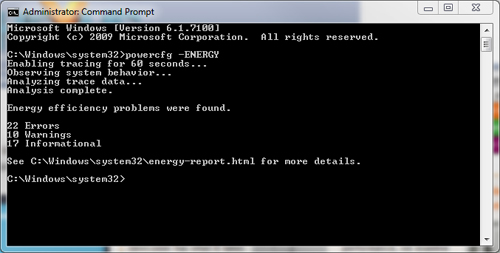
The report (saved as a web page at C:\Windows\system32\energy-report.html) will also detail the system's supported sleep states - that's S1, S2, S3 or S4 - as well as highlight other potential energy-saving settings.
We've tried it on Windows 7 RC, and we've found the report to be useful. It's worth noting, also, that the powercfg command is present in older versions of Windows, but the ability to generate an energy report is - as far as we're aware - new to Windows 7.
Does your system sleep as it should, or will you be trying to solve your system's insomnia with the Windows 7 energy report? Share your thoughts on sleep mode in the HEXUS.community forums.